
How to Automatically Reply to Instagram Comments
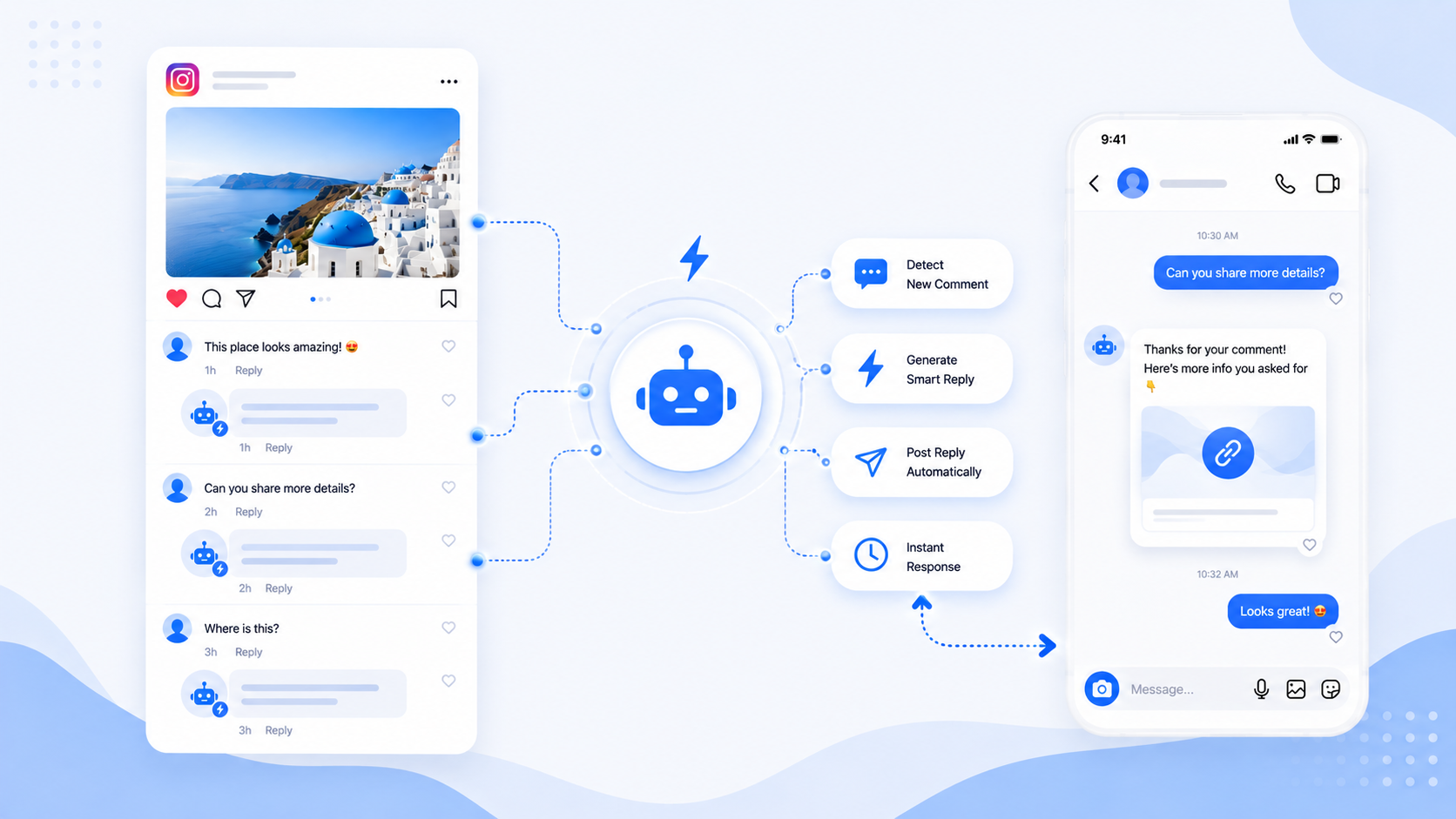
Automatically replying to Instagram comments can mean two different messages: a public reply under the comment, and a private DM. CommentLink can send either or both. Native Business Suite automations cover parts of this; the product pages on this site describe what we actually send.
Public reply
A public reply is visible on the post. Use it to confirm you saw them, to ask them to check DMs, or to answer a question you are willing to show everyone. Do not put a long affiliate URL in a public reply if you care about a clean thread — Instagram will still treat links awkwardly, and the thread becomes an ad.
Private DM
The DM is where the URL, button, or media card belongs. First-time conversations often land in Message Requests. Your public reply can say that in one line.
Setup in CommentLink
- Connect Instagram with Meta login.
- Open an auto-reply / comment automation on the post or Reel.
- Pick keywords or all comments.
- Write the public reply (optional) and the DM (optional). At least one should exist.
- Save. Test with a comment from a second account.
Stories and Reels
Reels comments use the same comment-to-DM / auto-reply machinery as feed posts. Story replies are a separate trigger (someone replies to the Story sticker or message). Do not expect a feed-post automation to fire on a Story; configure Story auto-reply if that is the surface you use.
What we will not claim
CommentLink does not post comments as if they were you on other people’s posts. “Automatically reply” here means replies on your media, via the API, to people who commented or messaged you.
Set up Instagram auto reply
Choose a public comment reply, a private DM, or both — from the same automation.
See auto replyRelated articles
Instagram Automation Dashboard: What to Track Weekly
A weekly checklist: connection health, queue depth, failed sends, and one campaign metric — not 40 vanity charts.
How to Track Instagram DM Leads by Post
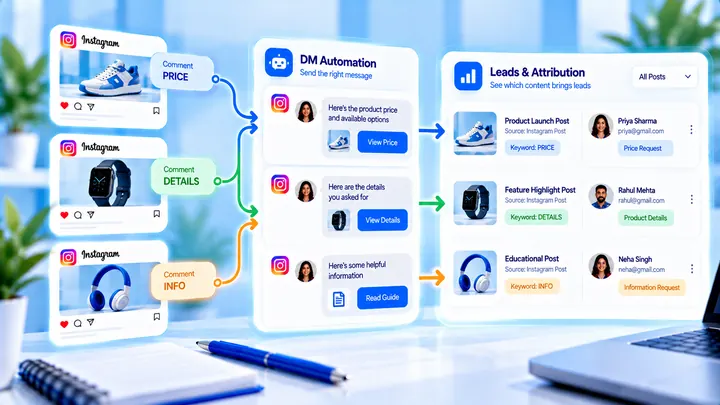
Know which Reel created conversations — name campaigns, use UTMs, and do not mix every keyword into one bucket.
How to Measure Leads from Instagram Comments
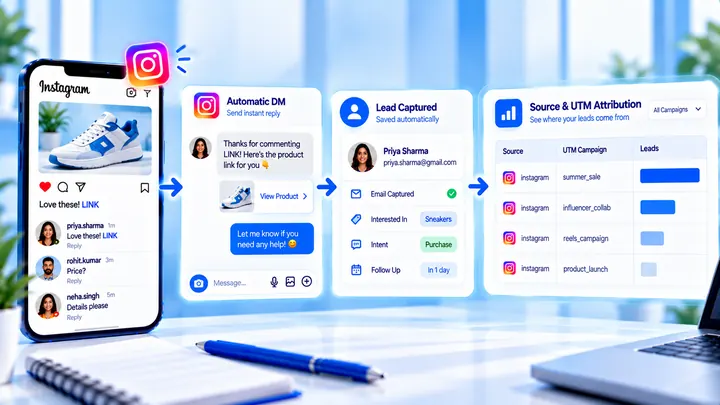
A lead from a comment is a contact you can follow up — not a comment count. Wire keyword → DM → email or UTM before you celebrate.