Instagram Comment-to-DM Setup (Step by Step)
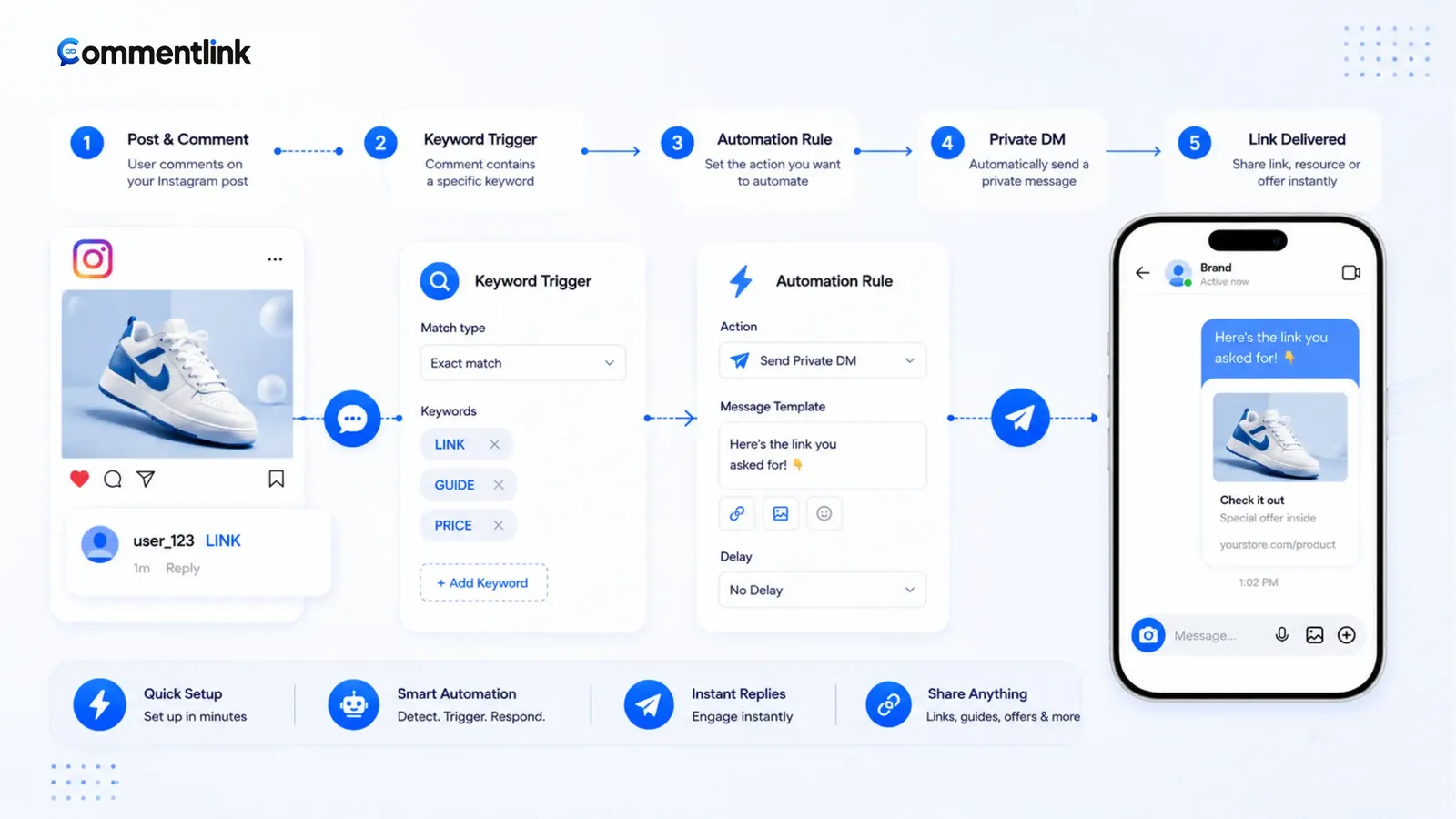
This is the setup sequence, not a lecture on what comment-to-DM is. If you already know you want a matching comment to produce a private Instagram DM, work the steps in order. Skip ahead only if the Professional account and Facebook Page are already linked — that is where most failed connections die.
You can finish this with Instagram’s own Comment to Message / Custom Keywords in Business Suite, or with a workspace such as CommentLink comment-to-DM. Native is enough for one keyword on one post at low volume. Use a workspace when you need contains/exclude matching, a public reply plus a DM, a follow-gate that checks Meta’s follow field, or a queue when the hourly DM cap is hit.
Both paths use official Meta APIs on a Professional account. Neither path should ask for the Instagram password. If a tool wants the password, stop — that is a different, unsafe category.
What must be true before any DM will send
Instagram will not expose messaging automations on a personal profile. Convert the account to Professional (Business or Creator), then link it to a Facebook Page you admin. That Page link is a Meta requirement, not a vendor upsell. CommentLink’s connect screen and native Business Suite automations both refuse the Instagram account until the Page is attached.
- Instagram app: profile → Professional dashboard → confirm Business or Creator.
- Facebook: a Page you can manage, then Instagram linked under Page settings / linked accounts.
- You will log in with Meta OAuth. CommentLink never stores the Instagram password.
- Have a second Instagram account ready to leave the test comment. Do not test only from the same account you connected.
Business or Creator — pick one and move
Both account types can run comment-triggered DMs. The badge is a brand choice, not an API gate. Pick Creator for a personal brand and Business for a shop, then continue. Do not stall setup on the badge. Meta’s rule is Professional plus a Facebook Page — the same rule native automations use. See the FAQs if you are unsure the Page is linked.
If Meta login refuses the account
Usual causes: still a personal profile, Page not linked, you are not an admin of the Page, or you picked the wrong Instagram in the Facebook login picker. The CommentLink FAQs cover the Page-link path. Fix the Meta side before you rewrite DM copy.
Step 1 — Decide native or a workspace
Open Meta Business Suite and look for Comment to Message / Custom Keywords on the post or Reel. If the job is “comment PRICE, get this URL” and you expect well under Instagram’s hourly automated-DM cap, start there. It is free of a SaaS invoice. The honest split versus a workspace is in native comment-to-DM vs CommentLink.
Choose a workspace when any of these are true: you need contains, exclude, mention-only, or catch-all matching; you want a short public reply and a private DM from the same comment; you want a follow-gate that reads is_user_follow_business after the person taps I’m following; you expect a viral spike and do not want later matching comments silently dropped; you want Instagram and WhatsApp in one inbox (comments still create Instagram DMs — they do not open WhatsApp).
Step 2 — Connect Instagram with Meta login
In CommentLink: sign up, start Connect Instagram, complete Facebook login, grant the messaging and Instagram permissions the screen lists, then pick the Professional account. Wait until the connection shows as active before you build the automation. A half-connected account looks like “nothing happens when I comment.”
Confirm the connected account is the one that owns the post. Agencies connecting the wrong brand is the second most common setup miss after a missing Facebook Page.
Step 3 — Pick the live post, Reel, or an upcoming rule
Comment-to-DM is scoped to media you choose (or to an upcoming-post rule that arms the next publish). A feed automation does not fire on a Story reply. A Story trigger does not fire on a Reel comment. Pick the surface you actually used in the caption.
If the post is not live yet, do not wait for the first hour of comments to miss the DM. Arm keywords with upcoming post automation so the rule exists before publish. If the post is already live, attach the automation to that media id.
Reels use the same comment engine as feed posts. If the caption lives on a Reel, select that Reel — do not attach the rule to an old carousel and hope.
Step 4 — Set the trigger the caption already promised
Write the caption (or on-screen text) first, then match the automation to that word. If the video says “comment LINK,” the trigger should be LINK, not a clever synonym nobody will type.
- Exact: the comment is that word as a token. Use for short codes (LINK, PRICE, DROP).
- Contains: the phrase can sit inside a longer comment (“link please”). Useful when people add emoji or thanks.
- Exclude: drop comments that contain a block list (scam, giveaway bot phrases you do not want to reward).
- Mention-only: require an @ mention — for UGC or collab posts, not for a shop caption.
- Catch-all: every comment. Launch and giveaway posts only. Noisy on a meme.
Native Custom Keywords are thinner than this list. If you need exclude or catch-all, you are already past native.
Step 5 — Write the DM that carries the next action
The DM is a short thank-you plus the URL, button, or card. Write it like a human who just saw the comment. Instagram can still place a first conversation in Message Requests. One line in the DM (“If this is in Requests, open it”) saves a support thread.
Do not paste a 400-word pitch. The commenter asked for a link. Send the link. If you need an email before the file, add a collect-email step in the flow after the first DM — do not hide the ask in a wall of text.
Affiliate and product URLs are allowed in the same way a human paste is allowed. Disclose where the law and Instagram’s rules require it. CommentLink does not hide the destination. For the “why DM the URL at all” framing, see how to send a link when someone comments.
Step 6 — Optional public reply and follow-gate
A public reply is visible on the thread. Use one sentence: you saw them, check DMs / Requests. Put the URL in the DM, not in a public affiliate dump. The split is covered in public reply vs private DM.
A follow-gate withholds the prize until they tap I’m following and CommentLink reads Meta’s is_user_follow_business field. It is not an honour system. Skip it on a warm list that already follows you. Turn it on for a viral giveaway where non-followers are farming the link. Mechanics: how Instagram follow gates actually work.
Step 7 — Publish, then test from a second account
- Save and switch the automation on. Draft rules do not send.
- From a second Instagram account, comment the exact keyword on the connected media.
- Confirm the public reply (if enabled) appears under that comment.
- Open the test account’s inbox and Message Requests. First-time DMs often land in Requests.
- If a follow-gate is on, tap I’m following only after that account actually follows, then confirm the link arrives.
- If nothing arrives in two minutes, check connection status, media selection, keyword spelling, and whether you commented from the connected account (self-comments are a bad test).
When volume is real, Instagram still caps automated DMs (commonly discussed as around 200 per hour). Native Custom Keywords typically drop later matches. CommentLink’s Smart Send Queue holds due DMs and sends when the window allows. Neither tool invents extra quota.
What this setup will not do
- It will not log in with your Instagram password or scrape the site with a browser bot.
- It will not send cold DMs to people who never commented.
- It will not turn an Instagram comment into a WhatsApp message. WhatsApp is a separate connected channel in the same inbox.
- It will not fire a feed rule on a Story, or a Story rule on a Reel.
If you needed the policy framing first, is Instagram comment automation allowed is the companion piece. Then come back and finish the clicks.
FAQ
Can I finish this setup without CommentLink?
Yes. Meta Business Suite Comment to Message / Custom Keywords can send a DM when a comment matches a keyword. Use that if one post and one keyword is the whole job.
Why did my test comment do nothing?
Usually the Facebook Page is not linked, the wrong Instagram is connected, the automation is still off, the keyword does not match (exact vs contains), or you commented from the same account. Check Message Requests on the test account.
Do Reels need a separate product?
No. Reels comments use the same comment engine. Attach the automation to that Reel. Story replies are a different trigger.
Where should the URL live — caption, bio, or DM?
The caption should tell people what to comment. The DM should carry the URL. The bio can stay as a fallback for people who never comment.
Related reading
Run the same setup in CommentLink
Connect with Meta login, pick a post or Reel, set the keyword and DM, then switch the automation on.
Turn Comments Into DMsRelated articles
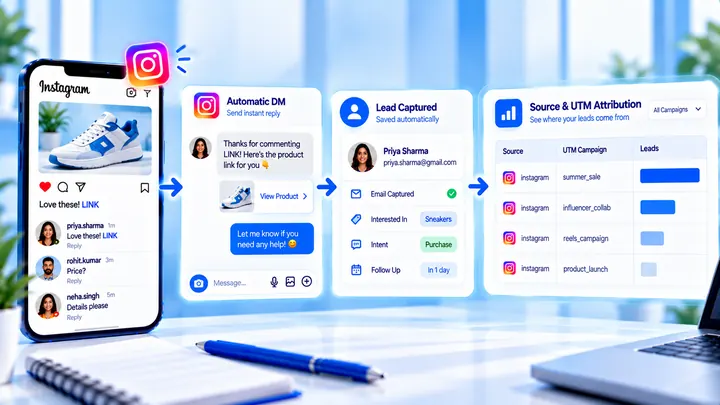
How to Measure Leads from Instagram Comments
A lead from a comment is a contact you can follow up — not a comment count. Wire keyword → DM → email or UTM before you celebrate.
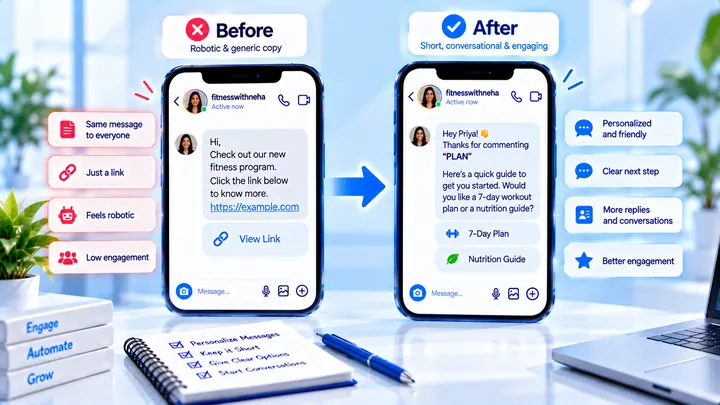
How to Write Automated Instagram DMs That Feel Human
Write human-sounding Instagram automated DMs: short openers, the promised next step, and a CTA that invites a reply — not a pitch wall.
How to Attribute Sales with Coupons in Instagram DMs
Unique codes in automated DMs can beat UTMs when checkout is messy — if you rotate codes and accept some leakage.